
Add Printer (Mac – AirPrint)
Connect your FBM printer using AirPrint (no driver install required).
Tip
If the printer does not appear automatically, confirm you’re on the correct Wi-Fi/network and try again.
1
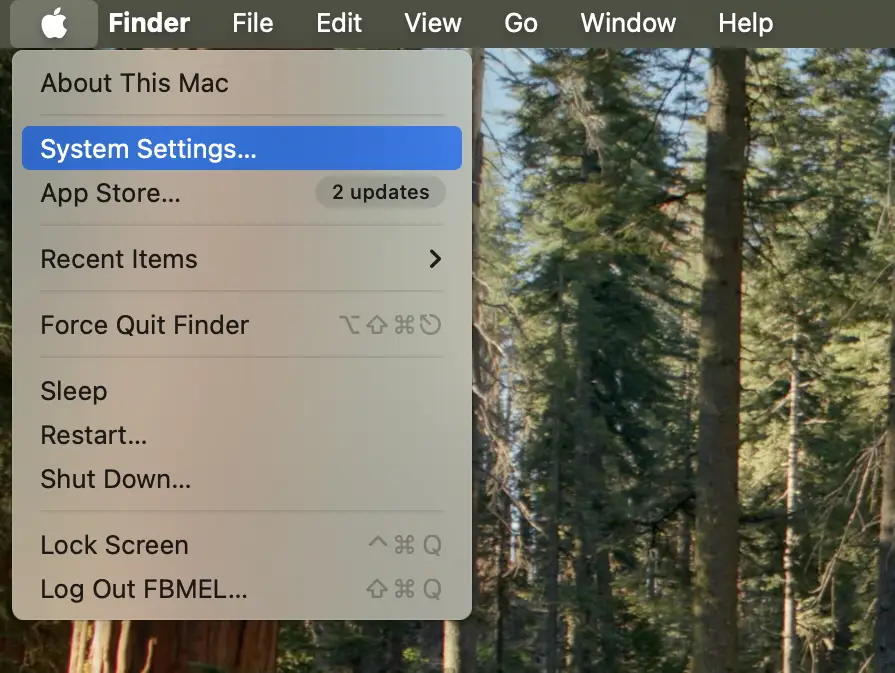
Open System Settings
Click Apple Menu → System Settings.
2
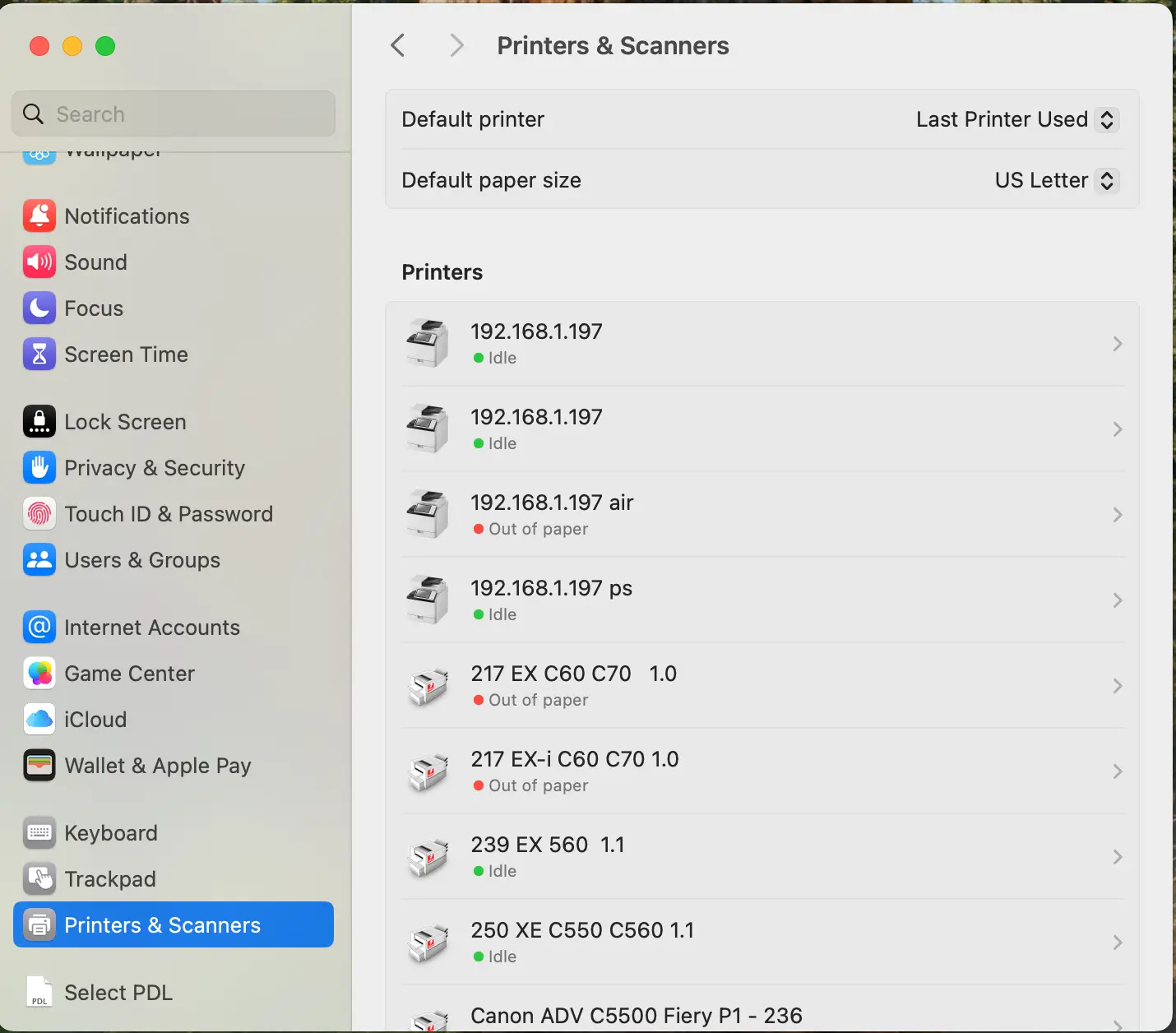
Go to Printers & Scanners
In System Settings, open Printers & Scanners.
3
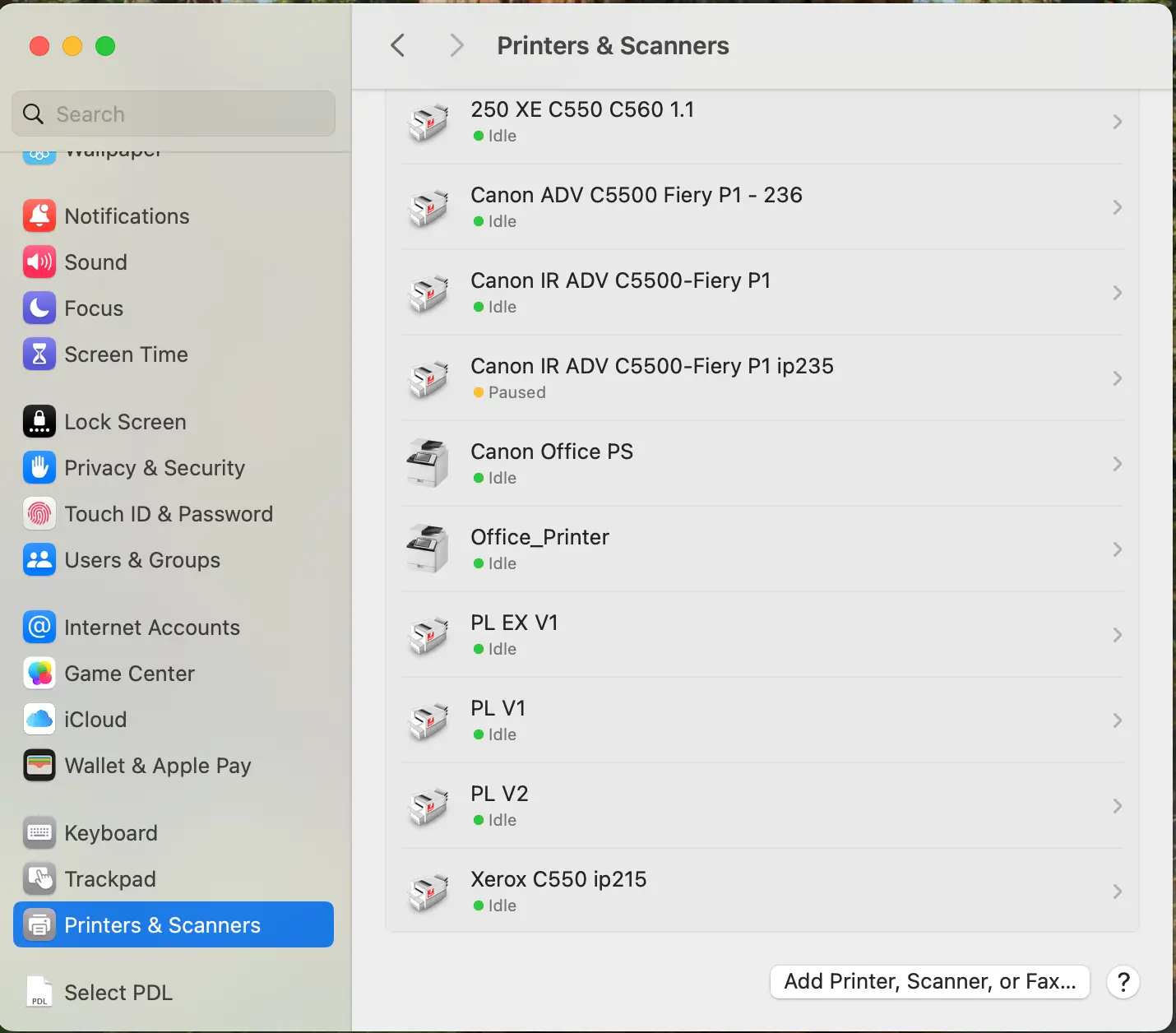
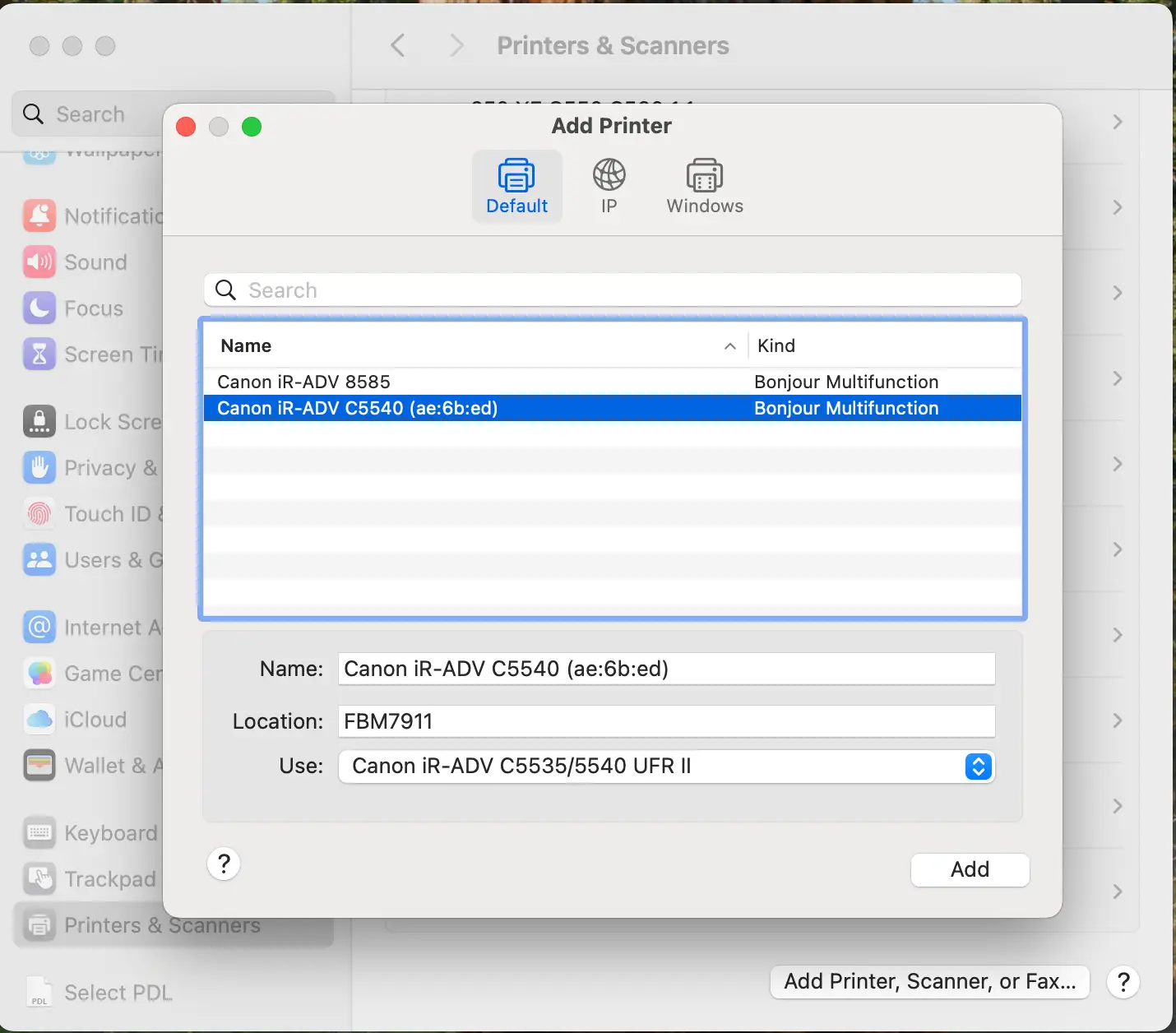
Add a printer
Click Add Printer, Scanner, or Fax…
4
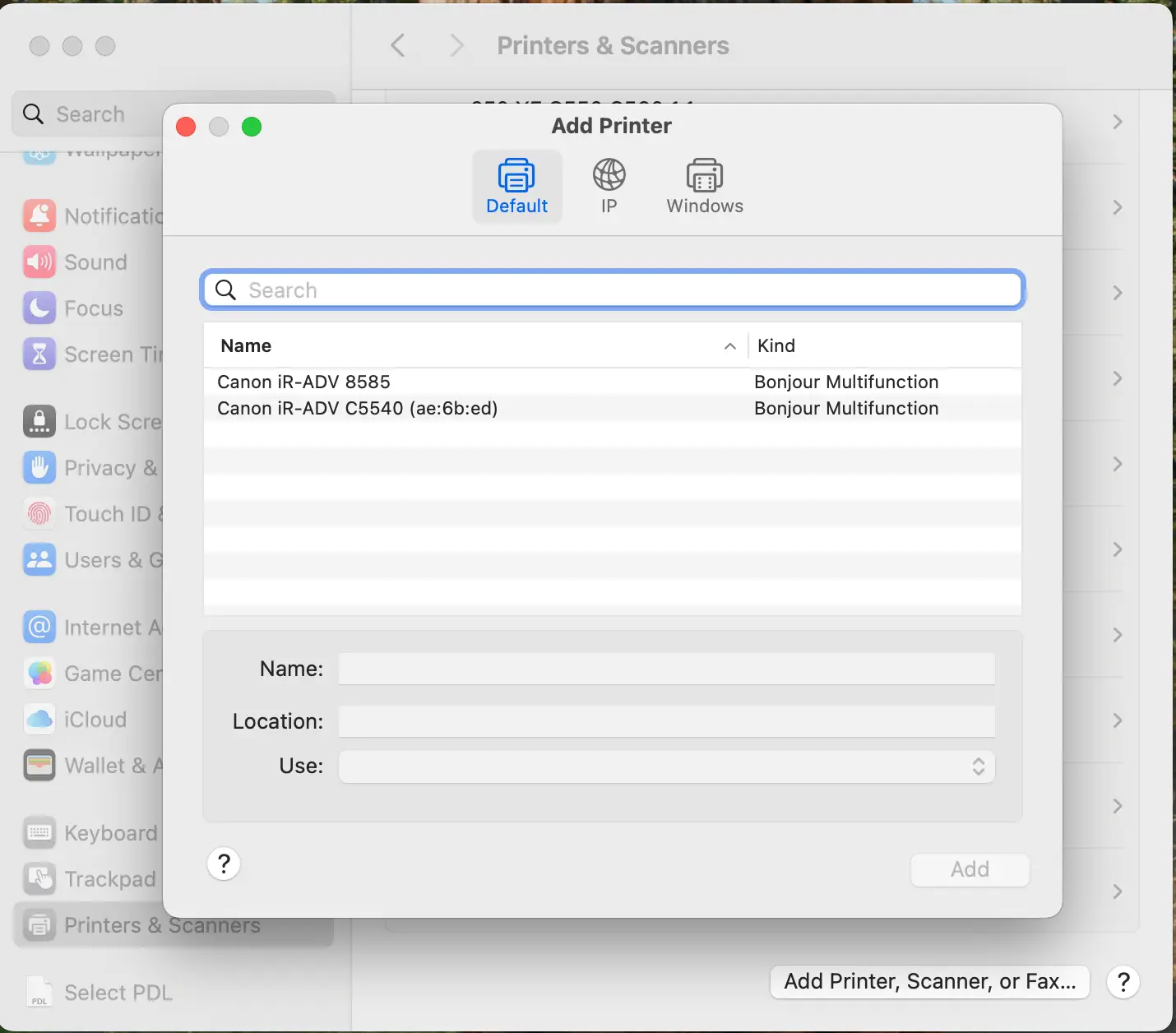
Select your FBM printer
Choose the printer from the list. It should appear automatically on the same network.
5
Set “Use” to AirPrint
In the “Use:” dropdown, select AirPrint.
6
Click Add
Click Add to complete setup. macOS will configure the printer automatically.
If the printer doesn’t show up
- Confirm your Mac is on the same Wi-Fi/network as the printer.
- Restart your Mac and try again.
- If needed, use TeamViewer guides for remote support.