
Add Printer (Windows)
Install your FBM network printer automatically using our AddPrinter tool.
What you need
Your FBM Number (provided by FBM). The printer IP address is already preconfigured.
1
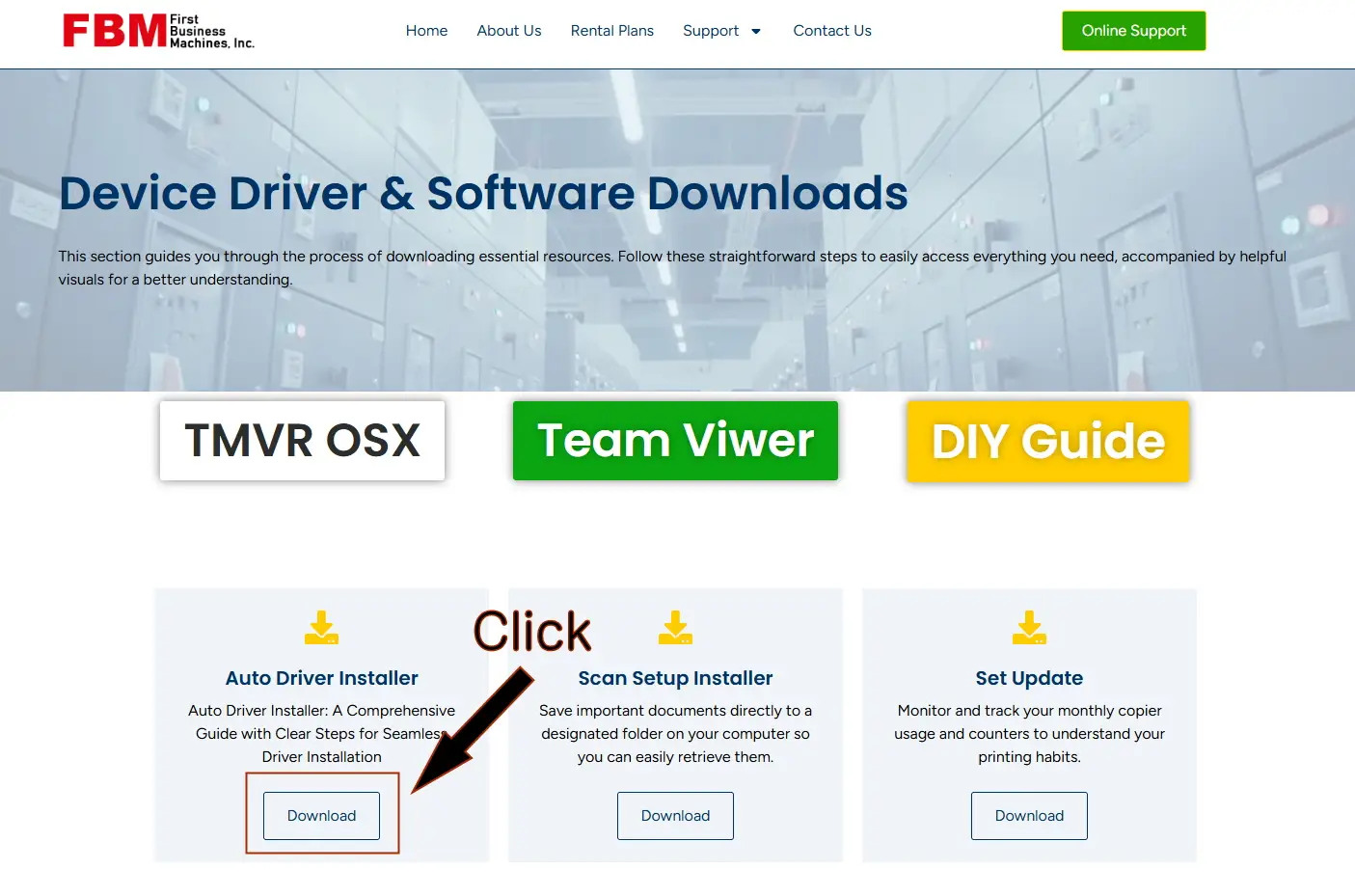
Go to Downloads Page
Click Go to Downloads, then download and open addprinter.vbs.
2
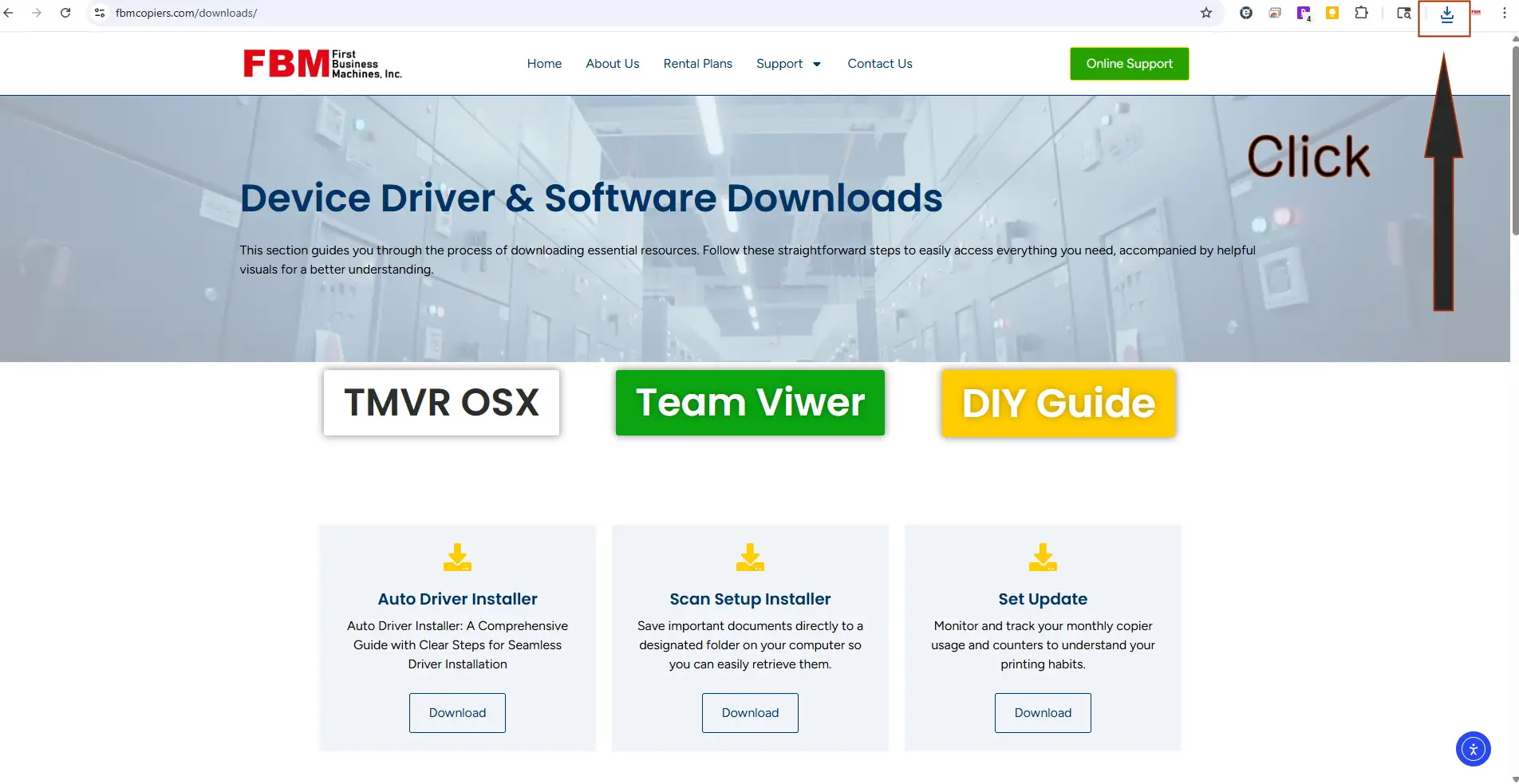
Run the file
Double-click addprinter.vbs to run it. If Windows asks for permission, click Yes.
Windows Security Notice (blue screen)
If you see “Windows protected your PC”, click More info → Run anyway. This is a normal security check for downloaded files.
3
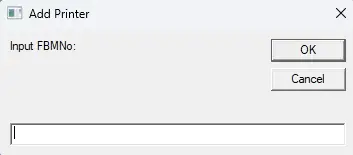
Enter your FBM Number
Enter the FBM Number provided by FBM, then click OK.
4
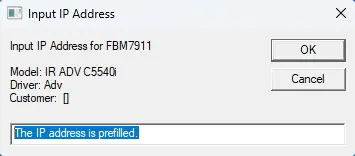
Confirm and install
The printer IP address is already filled in. Click OK to start installation.
5
Default printer & black/color preference
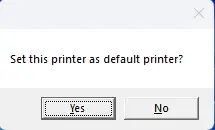
If asked to set this as your default printer, click Yes. If asked about black default: Yes = Black as default, No = Color as default.
Final prompts
- If you see a “Please wait…” message, click OK and wait a moment.
- If asked “Add another printer?”, choose Yes to add more, or No to finish.