
TeamViewer QuickSupport Install (Windows)
Install TeamViewer QuickSupport so FBM technicians can securely assist you remotely.
Your session is encrypted and secure. You can close TeamViewer at any time to end the connection.
Download TeamViewer QuickSupport
Click the download button above. If your browser asks to keep the file, choose Keep.
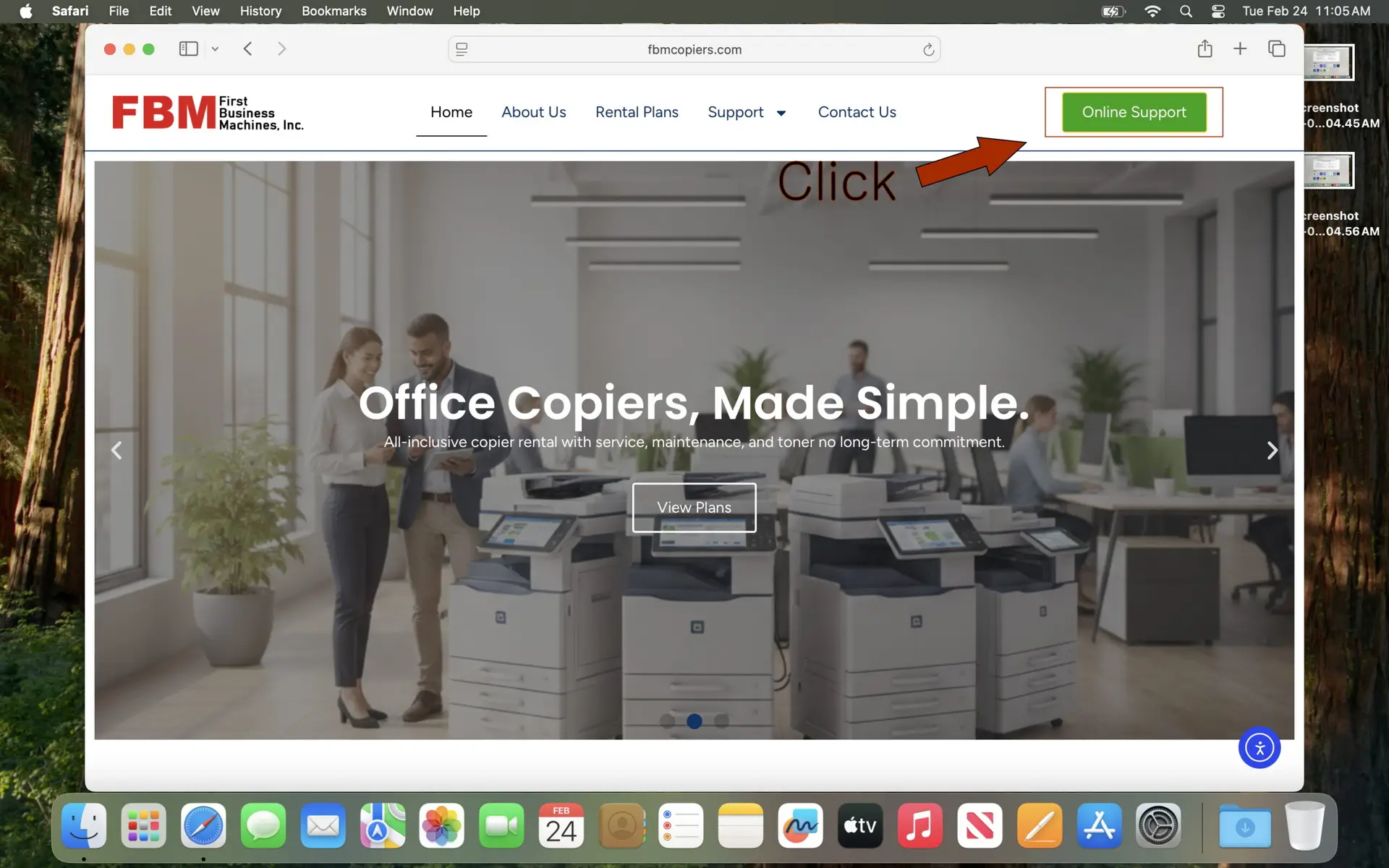
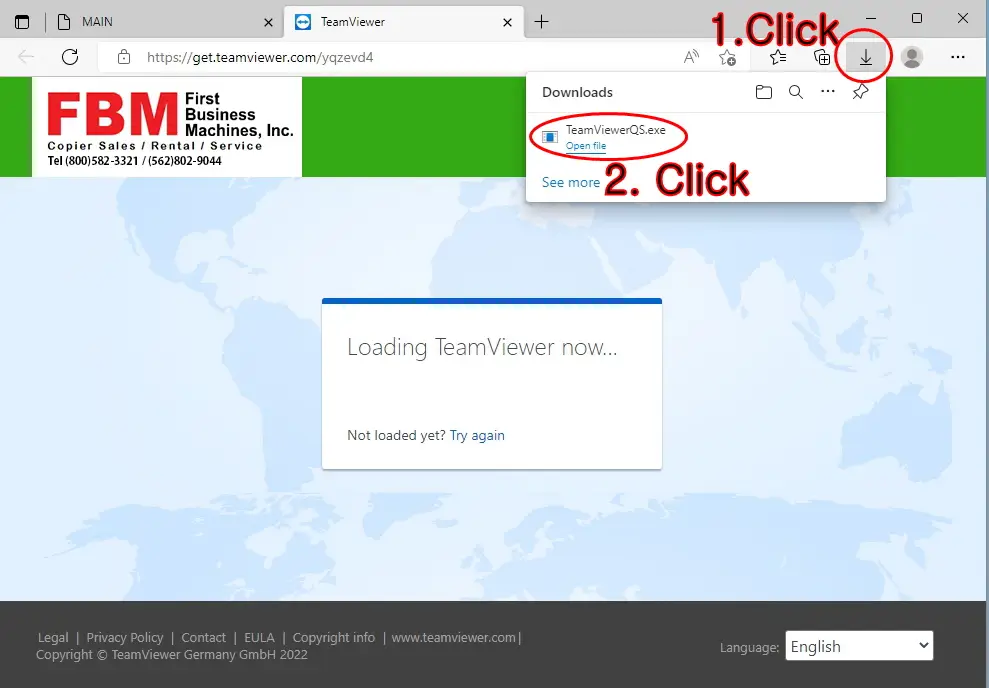
Open the file from your browser (Chrome / Edge / Firefox)
Chrome: click the top-right ⬇ Download icon → open the file. Edge: open from the downloads popup. Firefox: click the ⬇ icon → open the file.
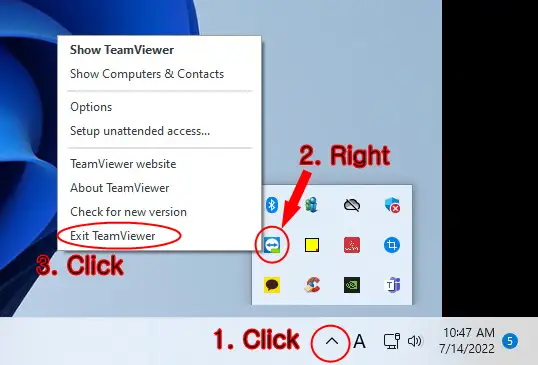
If you see “TeamViewer is already running”
Click the ^ in the bottom-right (hidden icons) → find TeamViewer → right-click → Exit TeamViewer. Then reopen the downloaded file.
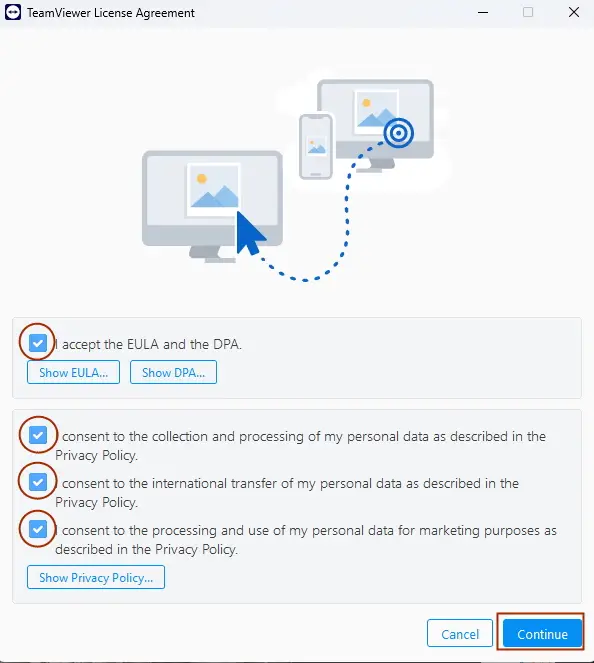
Accept the EULA (License Agreement)
When TeamViewer opens, accept the license agreement (EULA) to continue.
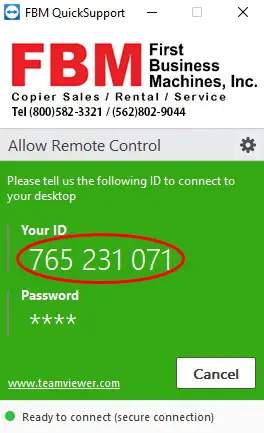
Send your ID & Password
Take a photo of the ID and Password, or text the ID/password to 562-802-9044.
Text Support
Send a photo or text your TeamViewer ID & Password to 562-802-9044. Please keep TeamViewer open until support is complete.