
TeamViewer QuickSupport Install (Mac)
macOS requires a few permissions to allow remote control. Follow the steps below.
Your session is encrypted and secure. You can close TeamViewer at any time to end the connection.
Download QuickSupport
Download using the button above, then open it from your browser’s top-right download icon.
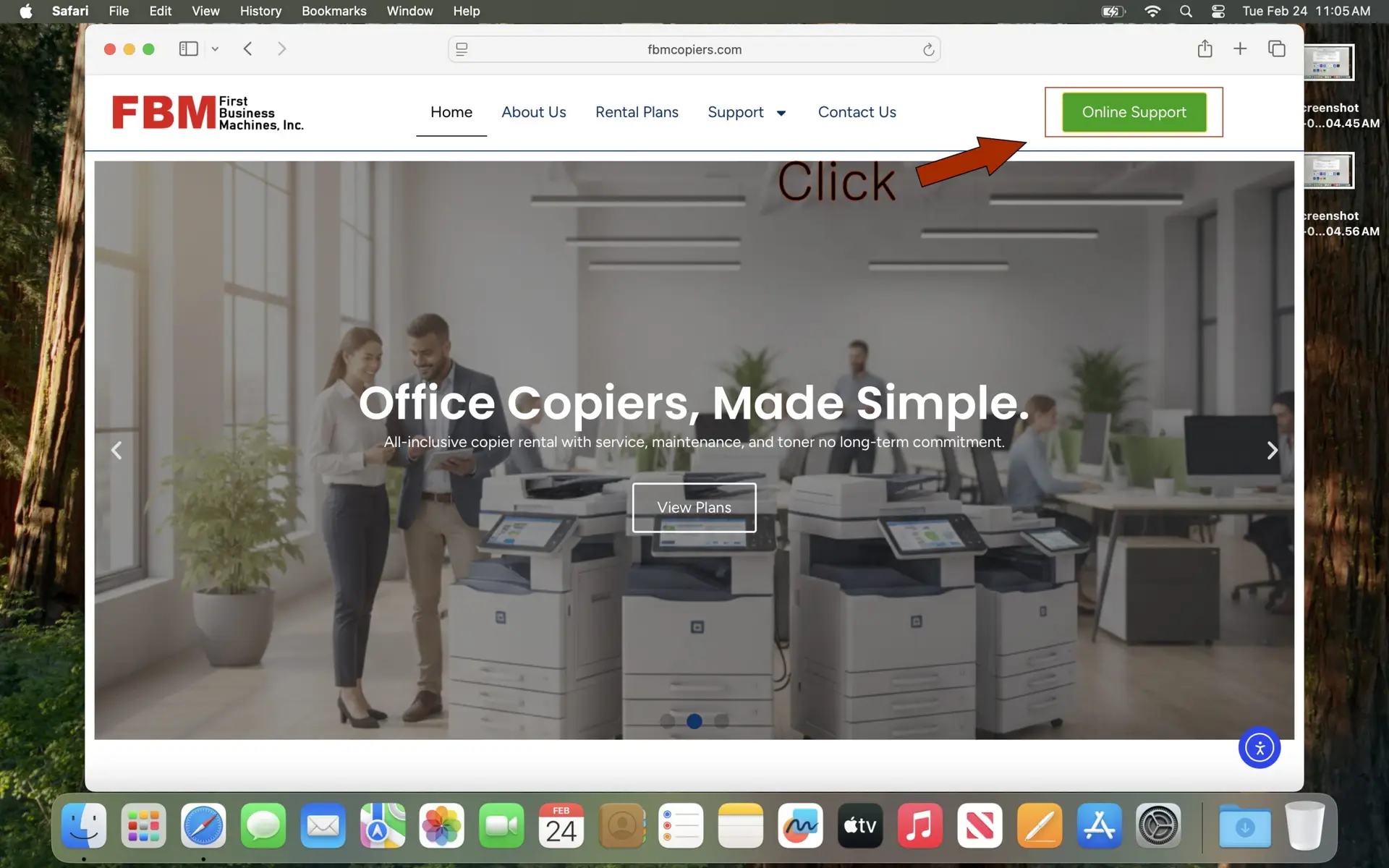
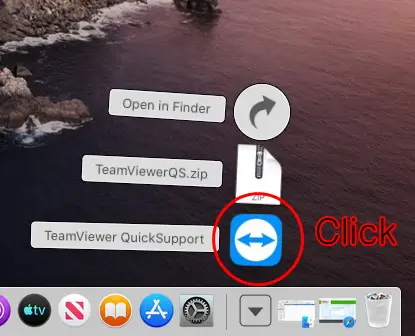
Open the app
Open the downloaded file. If macOS asks, click Open.
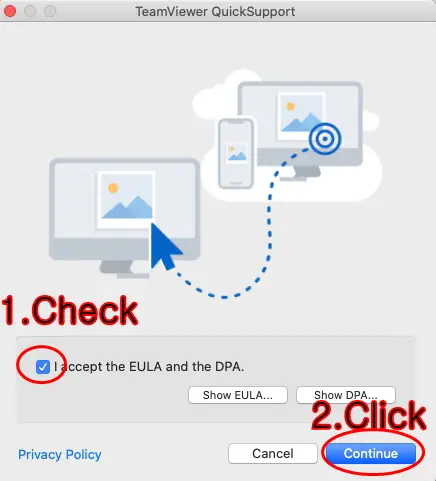
Accept the EULA (License Agreement)
When TeamViewer opens, accept the license agreement (EULA) to continue.
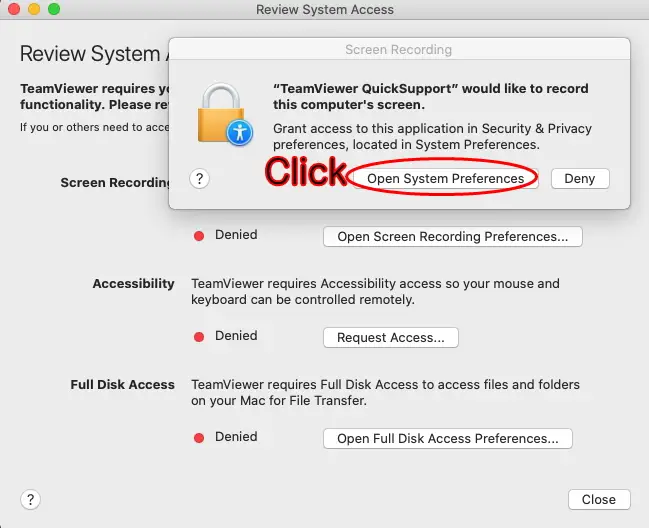
Open System Settings
If prompted, click Open System Settings. Otherwise go to Apple Menu → System Settings.
Enable Screen Recording
System Settings → Privacy & Security → Screen Recording → turn ON TeamViewer.

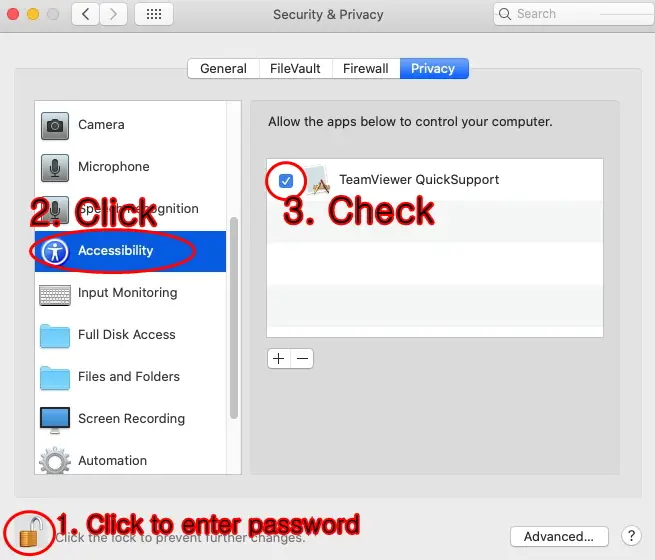
Enable Accessibility
Privacy & Security → Accessibility → turn ON TeamViewer. You may be asked for your Mac password.
Restart TeamViewer
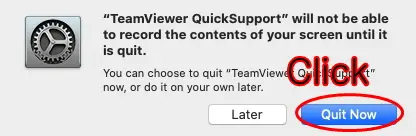
Close TeamViewer completely, then reopen it to apply permissions.
Send your ID & Password
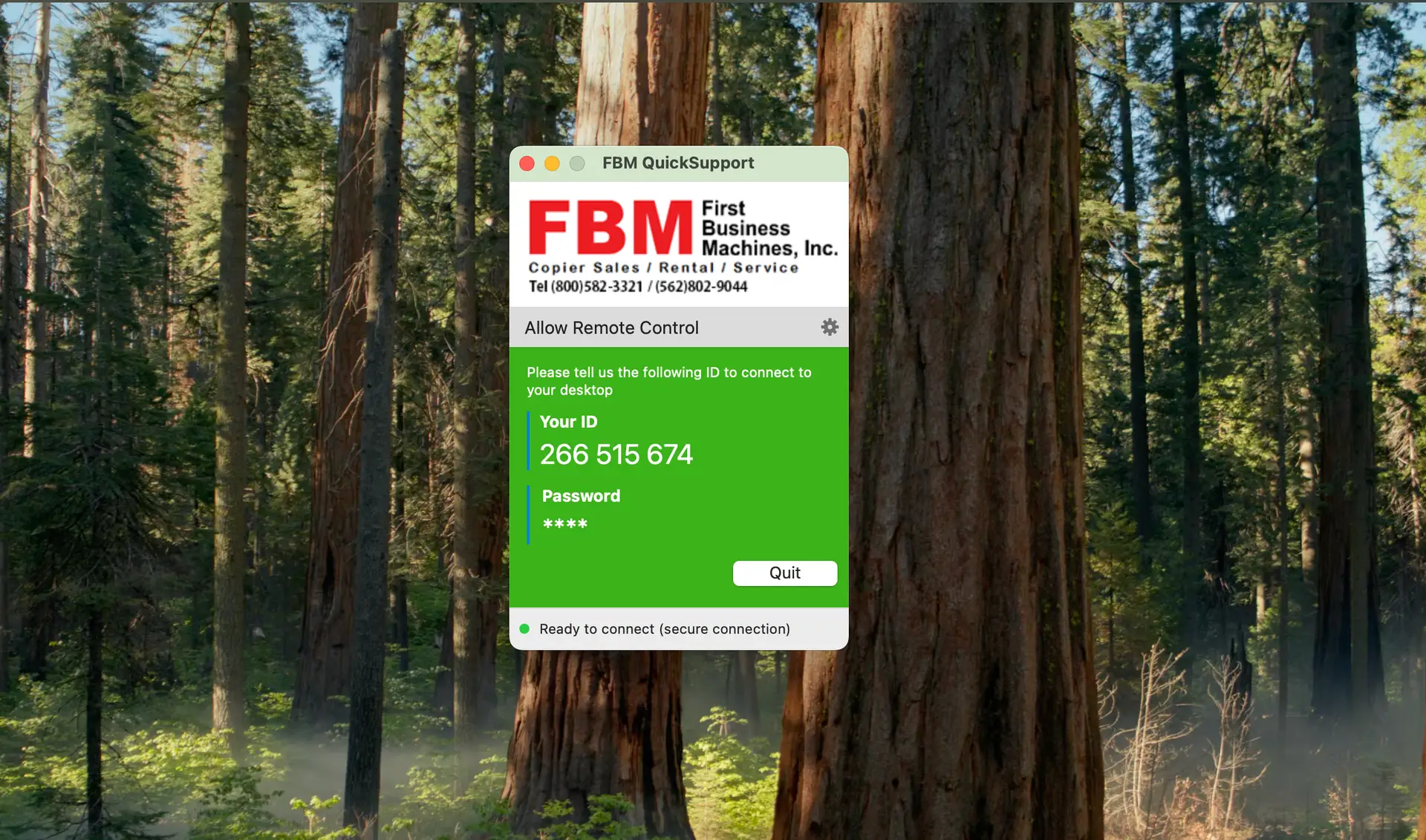
Take a photo of the ID and Password, or text the ID/password to 562-802-9044.
Text Support
Send a photo or text your TeamViewer ID & Password to 562-802-9044. Please keep TeamViewer open until support is complete.